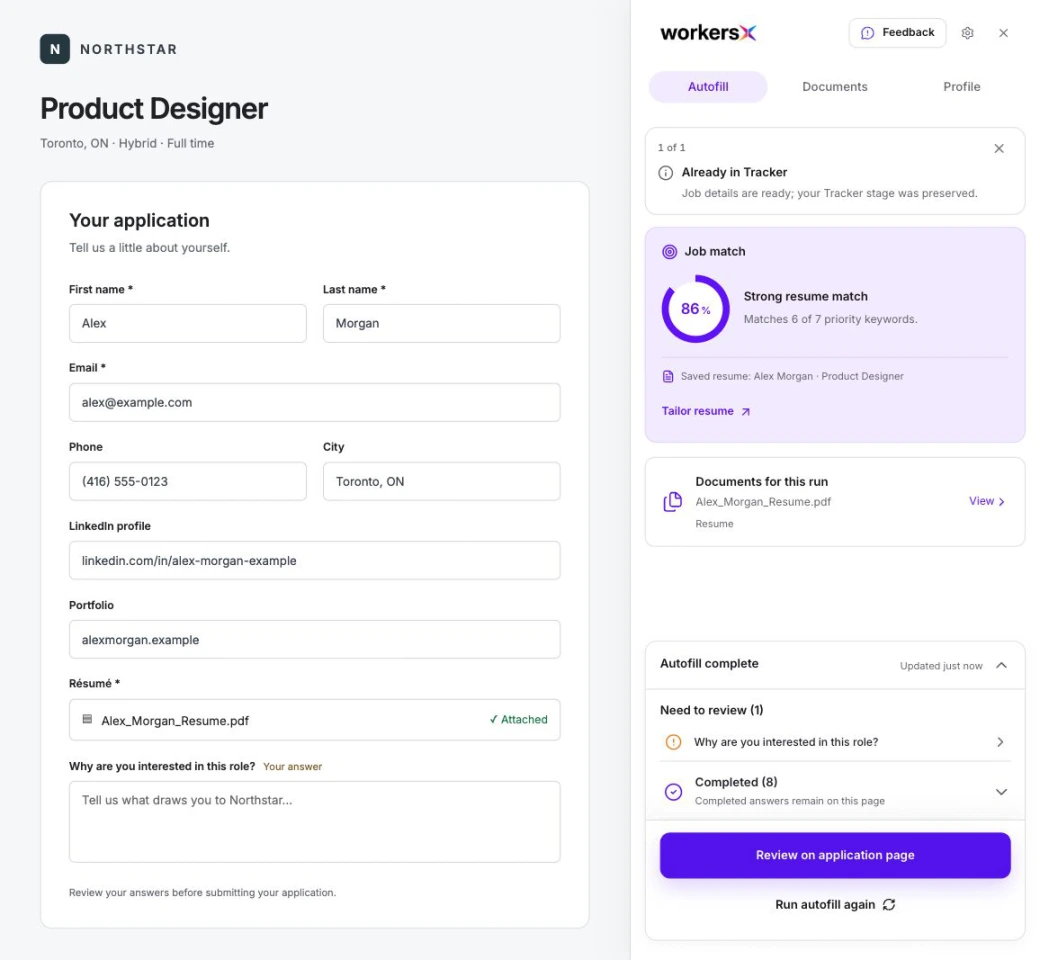
 WorkersX for Chrome
How job application autofill works.
Fill a job application with your WorkersX profile and resume, then review it before you submit.
Add to Chrome (opens in a new tab)- Your profile
Set up your profile once.
Sign in to WorkersX, add your contact details, work history, and education, then enable autofill. You can reuse those details on your next application.
 Sample WorkersX profileAlex MorganProduct designer · Toronto, ON
- [email protected]
- Resume
- Alex_Morgan_Resume.pdf
- Your resume
Choose a resume for this role.
Open a job application in Chrome and bring up the WorkersX panel. Check how your resume matches the posting, then choose the version you want to attach.
Inside the extension 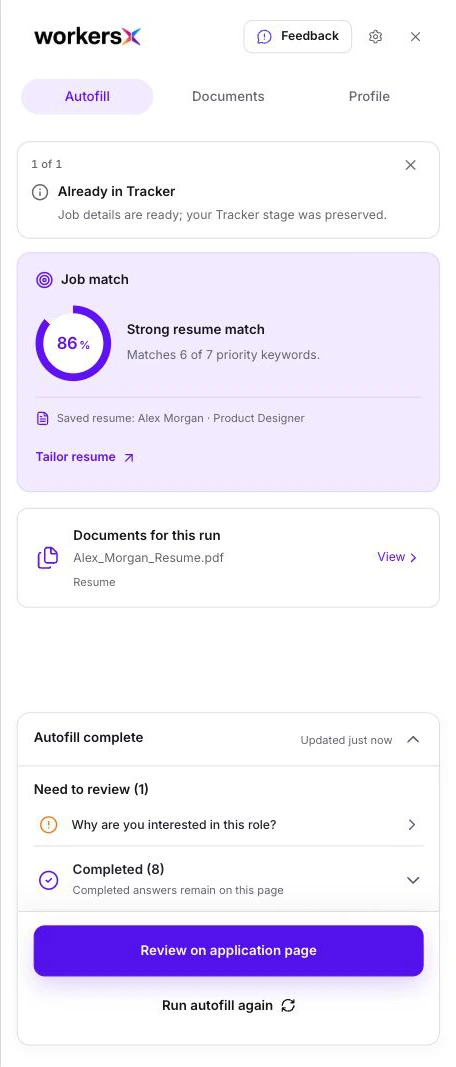
- Autofill
Fill the fields you keep retyping.
Select Autofill to enter your saved details in supported forms on Greenhouse, Lever, Ashby, BambooHR, and Workday. Try it here with Alex’s sample profile.
Sample application - First name
- EmptyAlex
- Last name
- EmptyMorgan
- Email address
- Empty[email protected]
Try autofill Reset example
3 sample fields filled.
- Your review
Read it over. Then hit submit.
The panel shows the fields WorkersX completed and the questions that need your attention. Review the answers on the employer’s application, edit anything you like, and submit it yourself.